How to Troubleshoot the Issue where the xPortal3000 Software Showed Invalid [Programming Mode] Error Message
- Tan Rong Wei (Unlicensed)
| Problem (Issue) Statement: | How to troubleshoot the issue where the xPortal3000 software showed "Invalid [Programming Mode]" error message |
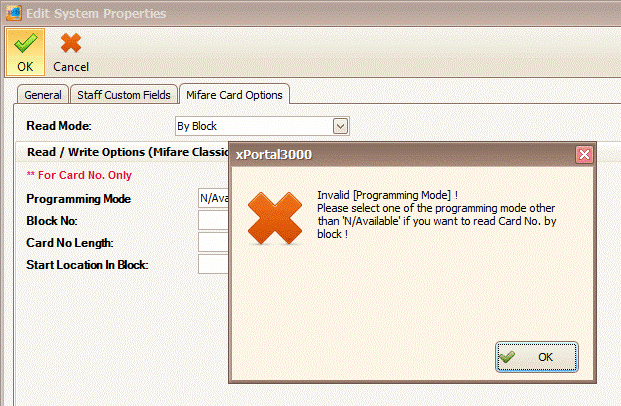
| Description: | After configuring settings under the Mifare Card Options tab in the Edit System Properties window, users are unable to save the changes made. |
| Related Software: |
|
| Related Hardware: | NIL |
| System Application: | NIL |
| Symptom and Finding: | When users attempt to click OK, the xPortal3000 software showed the following error message: |
| Cause: |
|
Summary:
. . Step-by-step Guide:
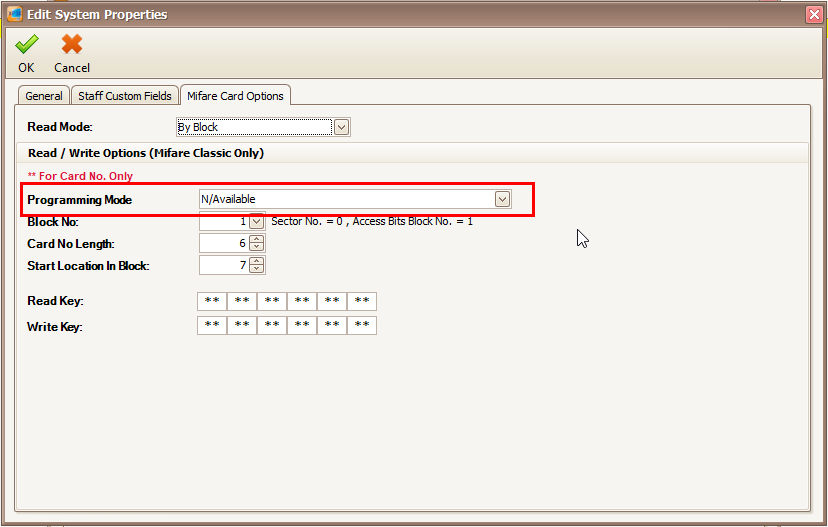
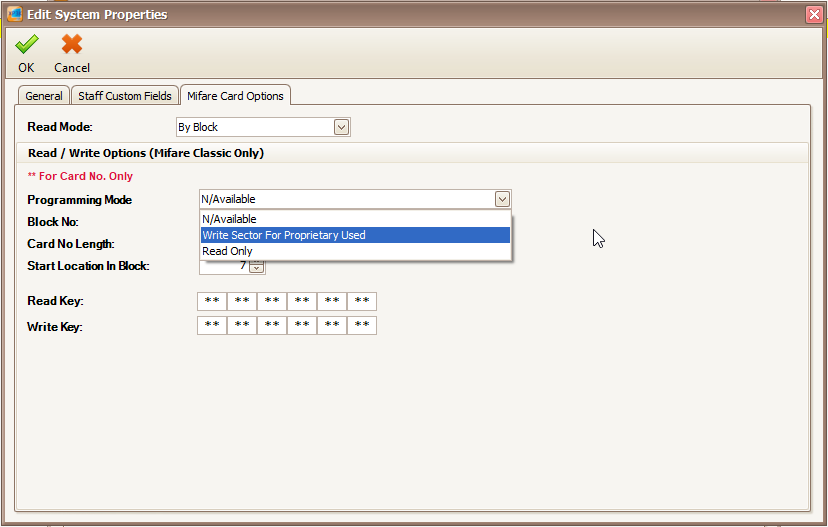
Step 1: Go to xPortal3000 Client > Control Panel > System Properties > Modify > Mifare Card Options tab. The Edit System Properties window will be shown. . Step 2: Click OK to save the changes. The software should allow users to save the changes now. | |
| Common Issues: | NIL |
| Porting Date: | 30/10/2019 |
PROOF-READ
.
Related Articles.
Containing the label "invalid-programming-mode"
Filter by label
There are no items with the selected labels at this time.
.
.
© MicroEngine Technology Sdn Bhd (535550-U). All rights reserved.