How to Clear AntiPassBack for the Legacy XP-GT or XP-GTR Series Controllers
| Problem (Issue) Statement: | How to Clear AntiPassBack for the legacy XP-GT or XP-GTR series controllers |
| Description: | This article will guide users on how to clear AntiPassBack for the XP-GT3200L or XP-GTR1200L series controllers. |
| Related Software: | NIL |
| Related Hardware: |
|
| System Application: | NIL |
| Symptom and Finding: | NIL |
| Cause: | For first time guide to clear AntiPassBack for the XP-GT3200L or XP-GTR1200L series controllers. |
Summary:
.
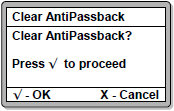
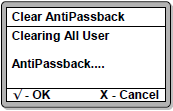
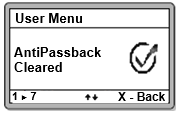
Step 1: Enter the Programming Menu for the XP-GT / XP-GTR controller. Press 2 for Database Menu > 5 for Clear AntiPassBack. The Clear AntiPassBack screen will be shown. Press the " . Knowledge Base Link Users may refer to How to Enter into Programming Menu for Legacy XP-GT or XP-GTR Controllers . . Step 2: The following screen will be shown by the controller when the controller is clearing All User's AntiPassBack statuses. . Step 3: The following confirmation screen will be shown by the controller once all the AntiPassBack statuses are cleared. Users will then automatically be redirected back to the Database Menu. | |
| Common Issues: | NIL |
| Porting Date: | 16/10/2019 |

PROOF-READ
.
.
.
© MicroEngine Technology Sdn Bhd (535550-U). All rights reserved.