Warning! Users are not recommended to run any xPortal software in Windows XP operating system as the system is unstable Users are also advised to stop the xPortal Services before shutting down the Server PC to prevent any missing transaction issues.
. . Warning! We do not recommend controllers and PC communication to be connected via Wifi (using Wifi dongles) as Wifi connection is unstable and can make controller statuses be shown as "Down".. . Summary To Configure Connection, Controller, and Door Settings Users can choose EITHER one of the two methods to configure the Connection, Controller, and Door settings. . Note The XP-M1000i-SE21 controller does not directly support 3rd party readers. Add-on module if 3rd party card reader is required: XP-MK-WG10S . Step-by-step Guide:Before configuring Connection, Controller, and Door settings for XP-M1000i / XP-M1000i-SE21 controller with xPortalNet, ensure that the pre-configure network connection has been complete:
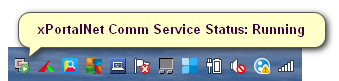
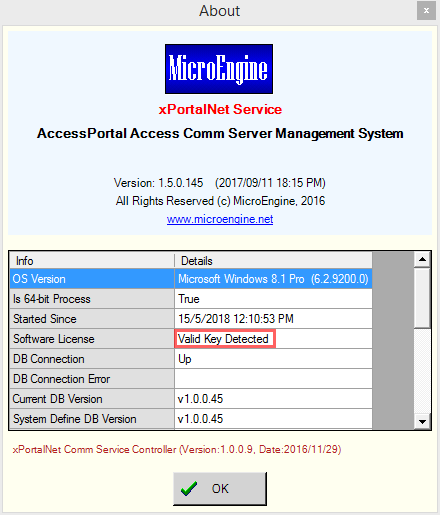
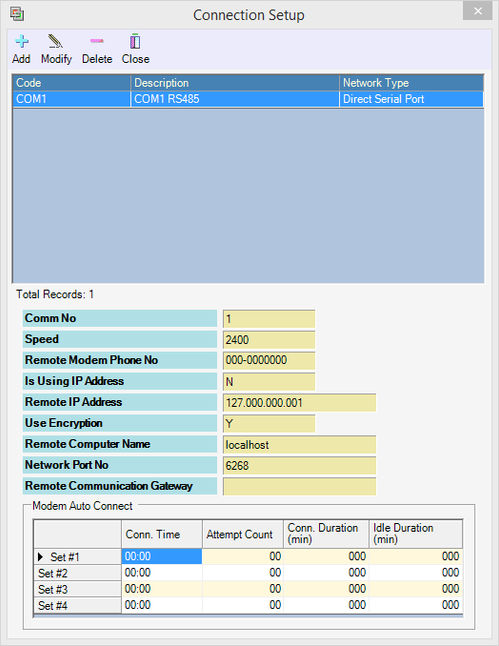
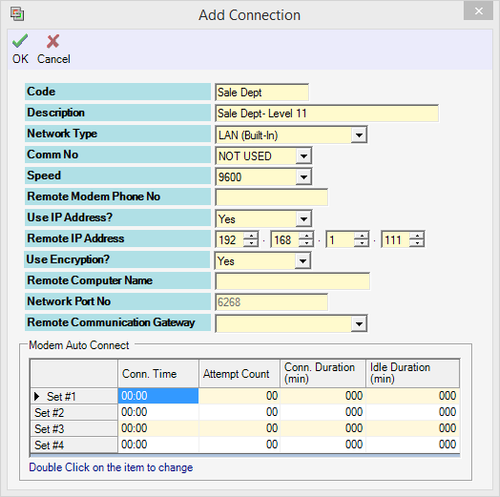
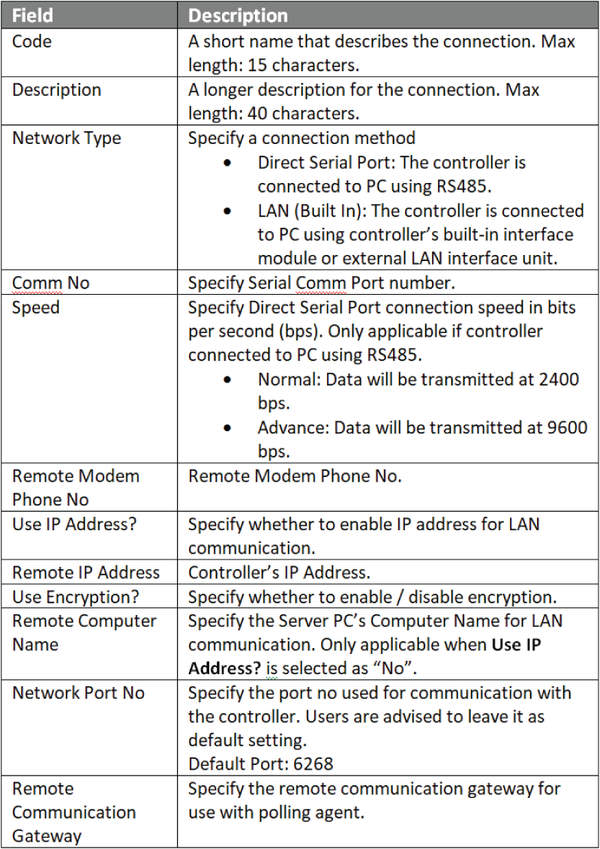
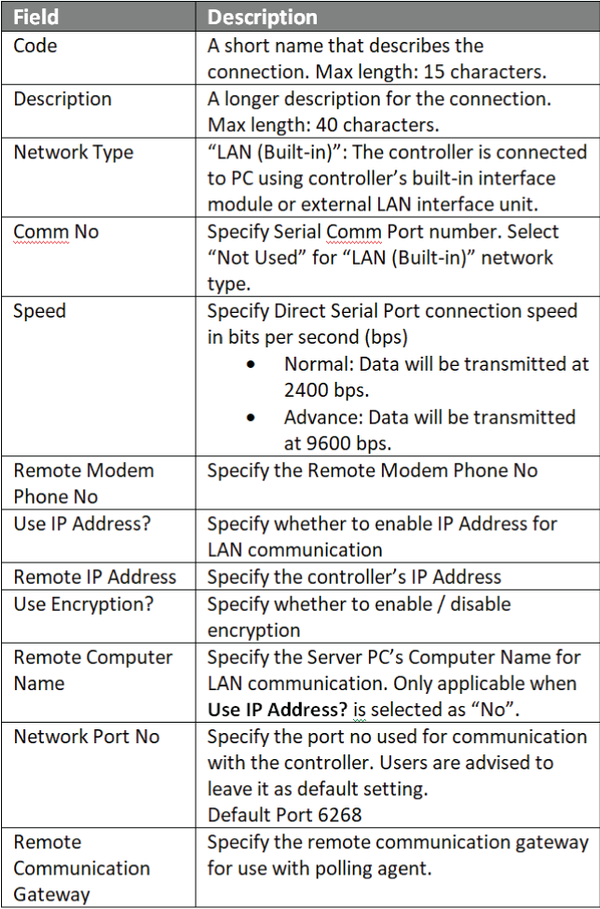
. . Step 1: Open xPortalNet Comm Service. Step 2: Ensure that the xPortalNet Comm Service Status is Running. Figure 1: xPortalNet Comm Service Running pop-up message Step 3: Right-click the xPortalNet Comm Service icon at the notification bar, click Check Service Info and verify that the software detects the plugged in USB license key. Figure 2: Valid software license key detected indication . . Step 1: Assign static IP address for XP-M1000i / XP-M1000i-SE21 controller via web diagnostic. . . . Step 2: For Connection setup, open xPortalNet Server > Server Admin > Connection Setup. The Connection Setup window will be shown as below. Figure 3: Connection Setup window Step 3: Click Add to add a new connection. The Add Connection window will be shown as below. Click OK to save the changes. Figure 4: Add Connection window
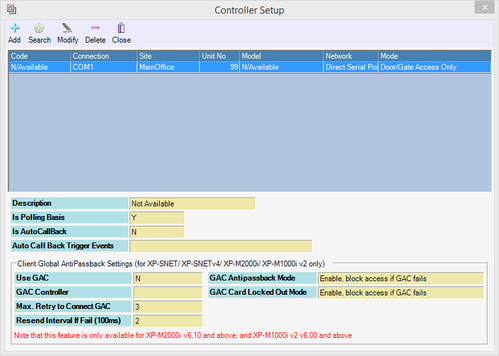
Step 4: For Controller Setup, go to Server Admin > System Device Setup > Controller. The Controller Setup window will be shown below: Figure 5: Controller Setup window
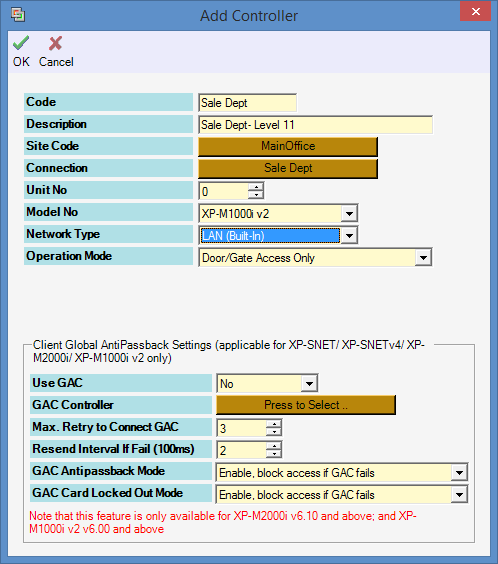
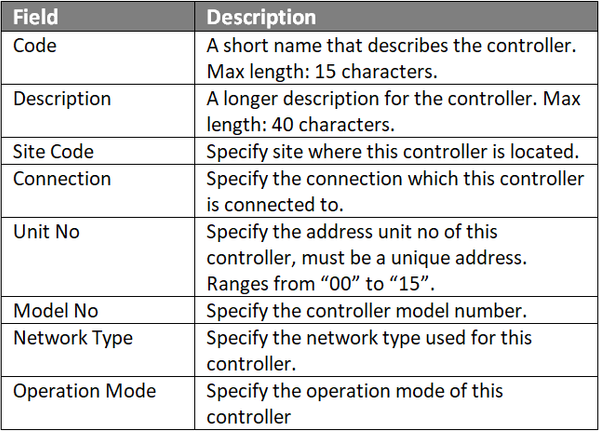
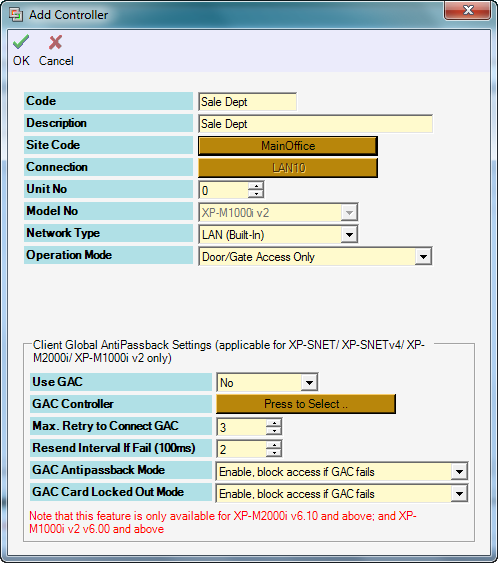
Step 5: Click Add to add a new controller. The Add Controller window will be shown as below. Click OK to save the changes. Figure 6: Add Controller window
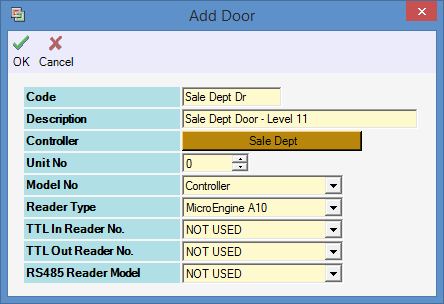
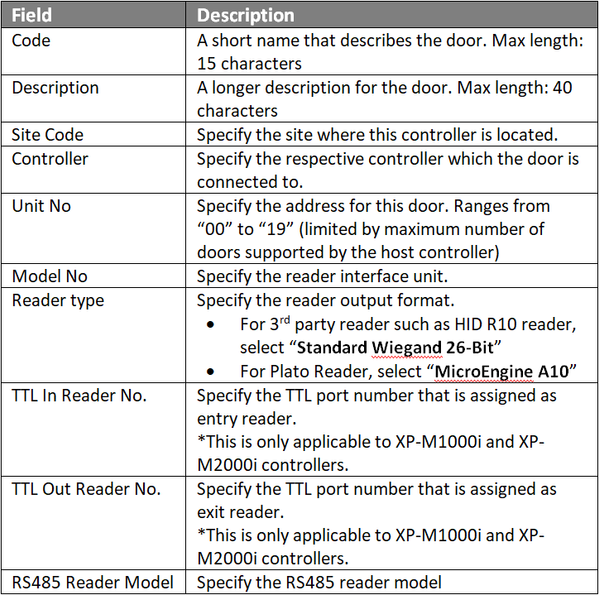
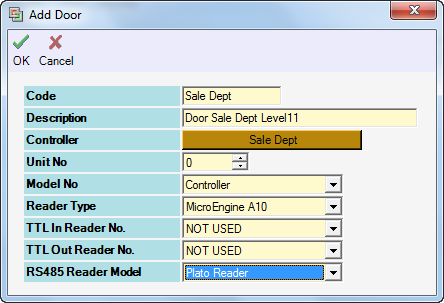
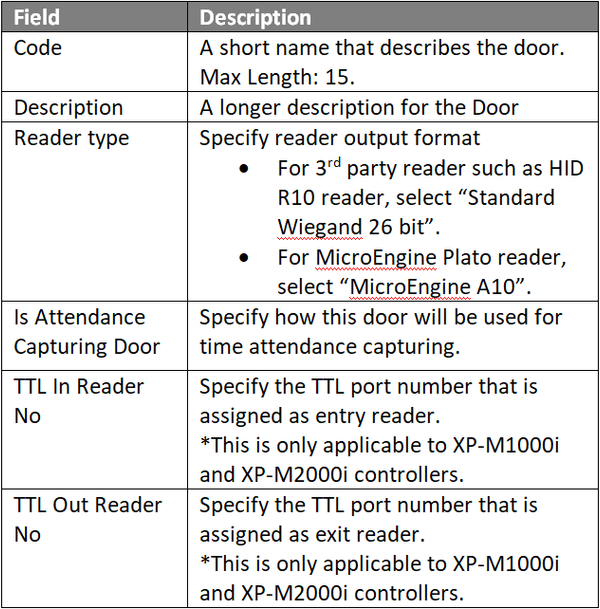
Step 6: For Door Setup, the Add Door window will be prompted by xPortalNet software as shown below. Click OK to save the changes. Figure 7: Add Door window
Note TTL In / Out Reader No configuration settings are only applicable when the third party reader is connected directly to the TTL port. If users are not using TTL readers, users can ignore the TTL Reader settings.
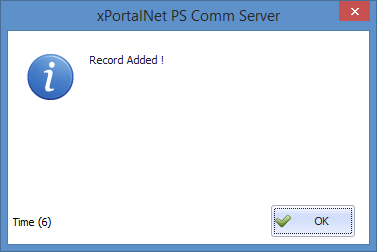
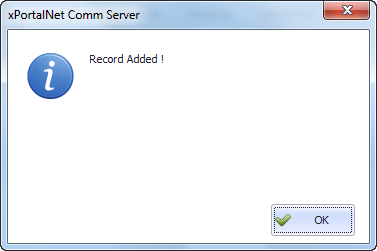
. . Step 7: The following message window will be shown to indicate that the Record is Added. Click OK to continue. Figure 8: Record Added window Step 8: The Connection, Controller, and Door settings are configured. Users can now observe the controller and door Status at Device List. .
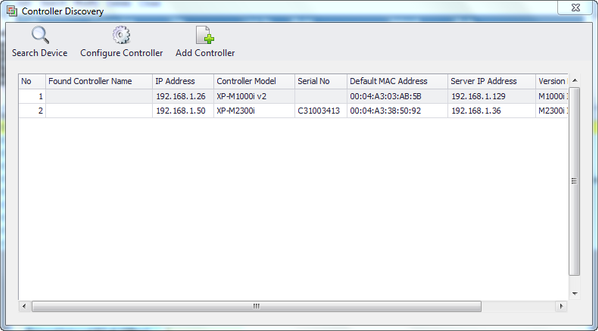
. Step 1: To use the controller Search function, go to xPortalNet Server > System Device Setup > Controller > Search. Figure 9: The Search icon Step 2: The Controller Discovery window will be shown as below. Once the connected controllers are discovered, select the controller to be configured and click Configure Controller. Figure 10: Controller Discovery window
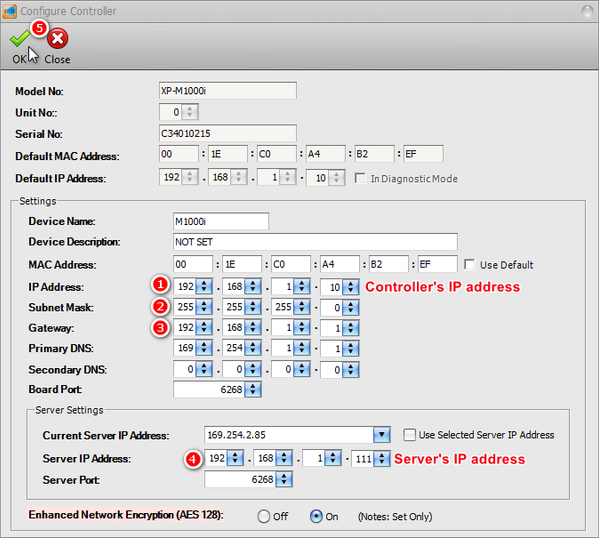
Step 3: The Configure Controller window will be shown as below. Users are advised to re-assign the controller's IP address, subnet mask, gateway and Server IP address following the site requirements. Figure 11: Configure Controller window
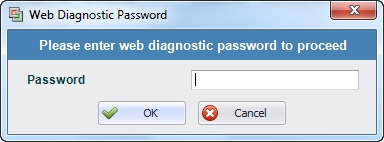
Step 4: After clicking OK, xPortalNet software will prompt users to enter the web diagnostic password to proceed to update changed settings. Figure 12: Software prompting to enter web diagnostic password
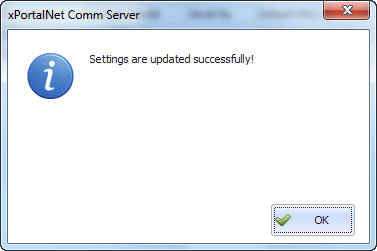
Step 5: The following message window will be shown once all settings are updated. Click OK. Figure 13: Settings are updated successfully! message window
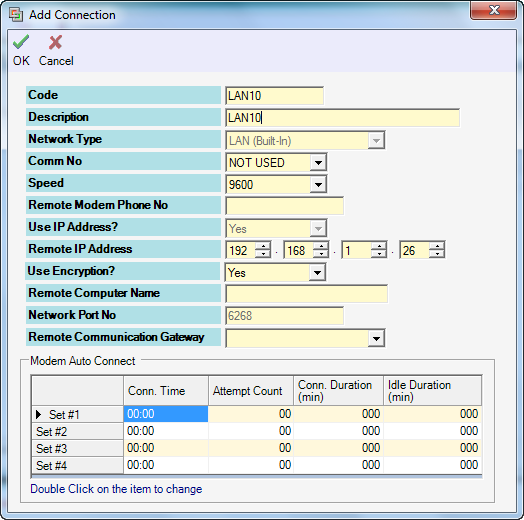
Step 6: The Add Connection window will be shown. Fill up the respective fields. Click OK to continue. Figure 14: Add Connection window
Step 7: The following message window will be shown to indicate that the Record is Added. Click OK to continue. Figure 15: Record Added message window
Step 8: The Add Controller window will be shown. Fill up the respective fields. Click OK to continue Figure 16: Add Controller window
Step 9: The following message window will be shown to indicate that the Record is Added. Click OK to continue. Figure 17: Record Added message window
Step 10: The Add Door Setting window will then be shown. Fill up the door details as below and click OK. Figure 18: Add Door window
Note TTL In/Out Readers are then connected to the respective TTL ports following the TTL In Reader No. and TTL Out Reader No. settings respectively. If users are not using TTL readers, users can ignore the TTL Reader settings.
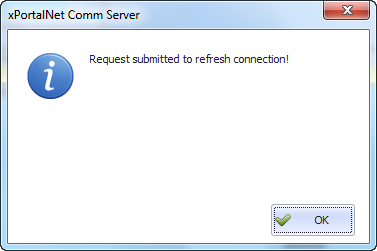
. . Step 10: The following window will be shown after users have configured the relevant settings. Please wait until prompt the Request submitted to refresh connection window. Click OK to continue. Figure 19: Retrieving Controller Information window Figure 20: Refresh Connection message window
Step 11: The Connection, Controller, and Door settings are configured. Users can now observe the controller and door Status at Device List.
. . Step 1: After completing the Connection, Controller and Door settings using EITHER of the two methods, users can now check the status of the controller and door. Step 2: To check the status of the controller, go to xPortalNet Server > Device List > Controller List to verify that the controller Status is Up. Figure 21: Controller List under Device List tab
Step 3: To check the status of the door, go to xPortalNet Server > Devices List > Door List to verify that the door Status is Up. Figure 22: Door List under Device List tab
|