Summary
To stop xPortalNet Services.
To restore backed-up xPortalNet database files to SQL Server.
Step-by-step Guide:
Stopped xPotalNet Services:
Step 1: To close xPortalNet Server & Client if any of the software instances are still running.
Step 2: Right-click the xPortalNet Service icon, click Stop. Wait for the pop-up message indicating that the xPortalNet Service has been stopped.

Figure 1: Right-click xPortalNet Service Icon and Click Stop
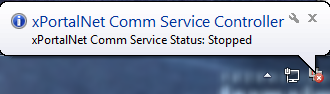
Figure 2: xPortalNet Service Stopped Pop-up Message
To restore backed-up xPortalNet database files to SQL Server:
Step 1: Open the SQL Server Management Studio software application.

Figure 3: Open the SQL Server Management Studio Software
Step 2: The following window will be shown. Click Connect.
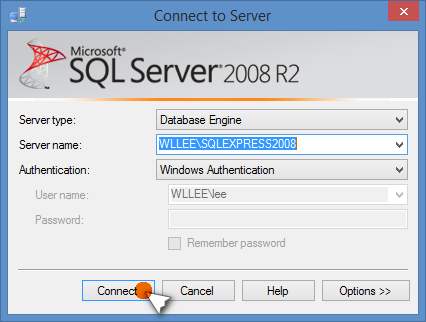
Figure 4: Connect to Server Window from SQL Server Management Studio Software
Step 3: Expand the Database folder to find the dropdown list.
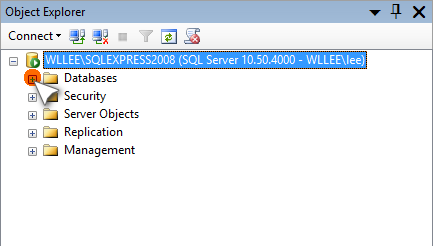
Figure 5: Expanding the Database Folder
Step 4: The 'XPNDB' and 'XPNTR' folder will be shown.
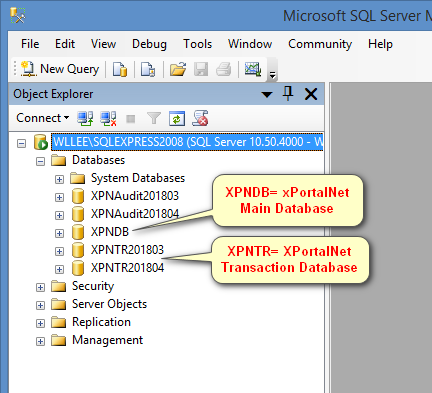
Figure 6: The XPNDB and XPNTR Folder under Database Folder
Step 5: To restore the database, right click the 'XPNDB' folder > Tasks > Restore > Database.
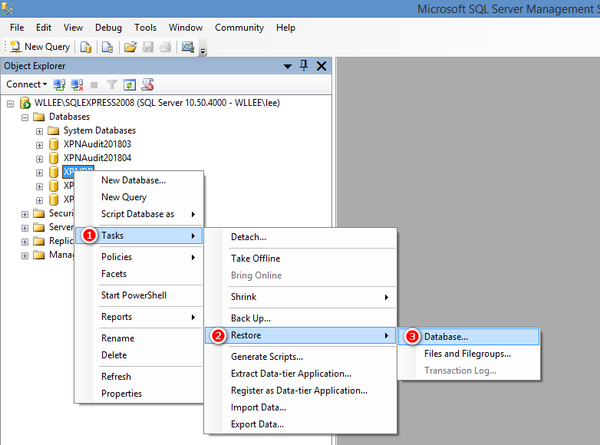
Figure 7: To Restore XPNDB Folder
Step 6: The Restore Database- XPNDB window will be shown. Ensure that the To database: field is selected as 'XPNDB'. Under the 'Source for restore' section, select From device then browse and locate the backup database file.
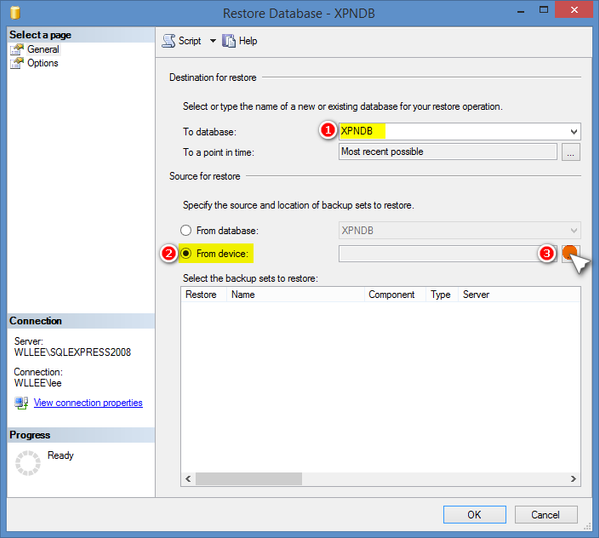
Figure 8: Restore Database – XPNDB Window
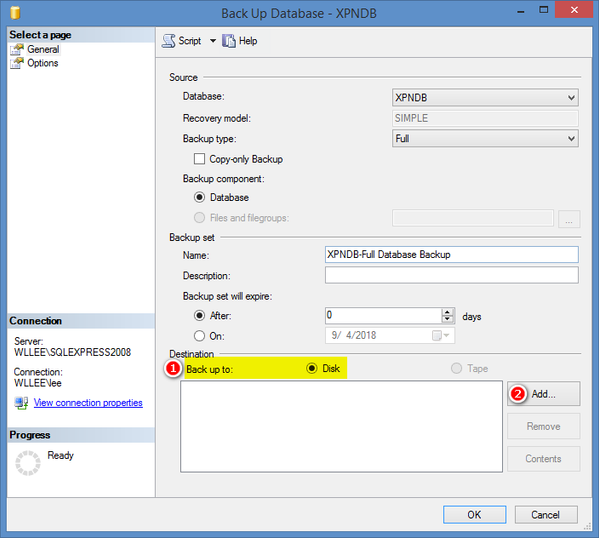
Step 7: Please ensure that Back up to 'Disk' checkbox is checked and click Add for new backup destination folder location.
 .
.
Figure 9: Checking Back Up to Disk for new Backup Destination Folder Location
Step 8: Click Add to specify the backup database location for the database restore operation.
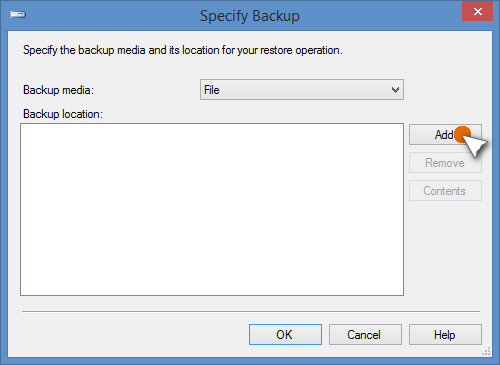
Figure 10: Clicking Add to specify new Backup Database Location
Step 9: The Locate Backup File window will be shown. Select the backup file and click OK.
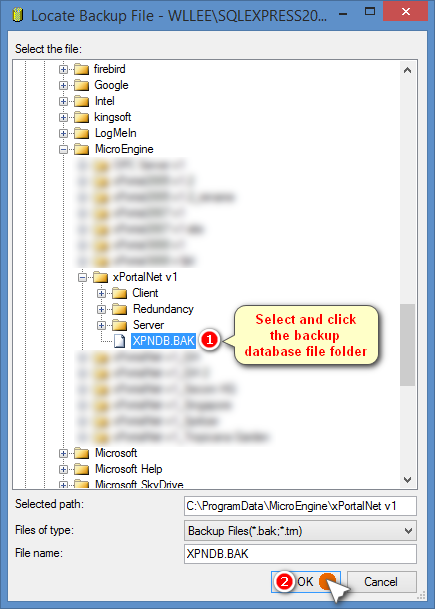
Figure 11: Selecting the Backup File
Step 10: Confirm the backup file location and click OK to continue.
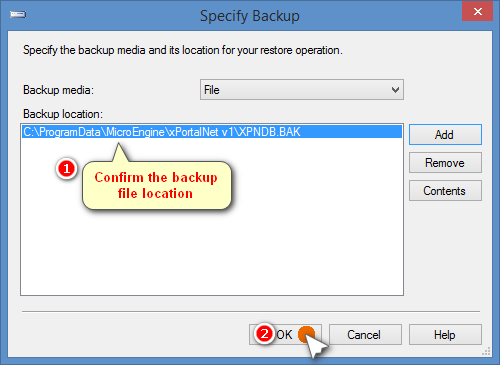
Figure 12: Confirming the Backup File Location
Step 11: Check the database to restore and at the top left of the window, select Options page.
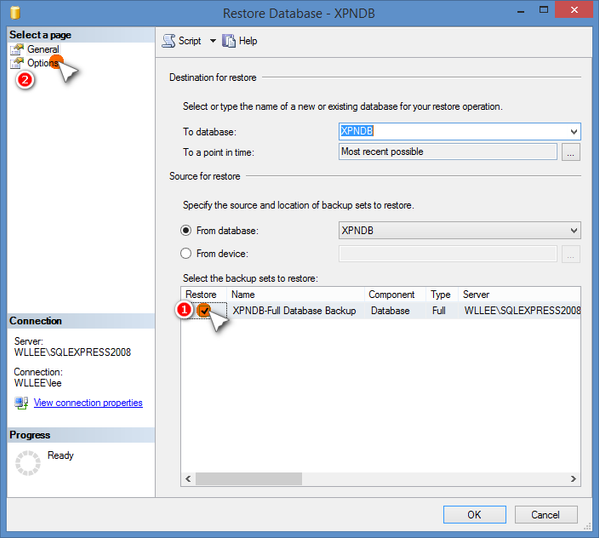
Figure 13: Checking the Restore checkbox in Restore Database – XPNDB Window
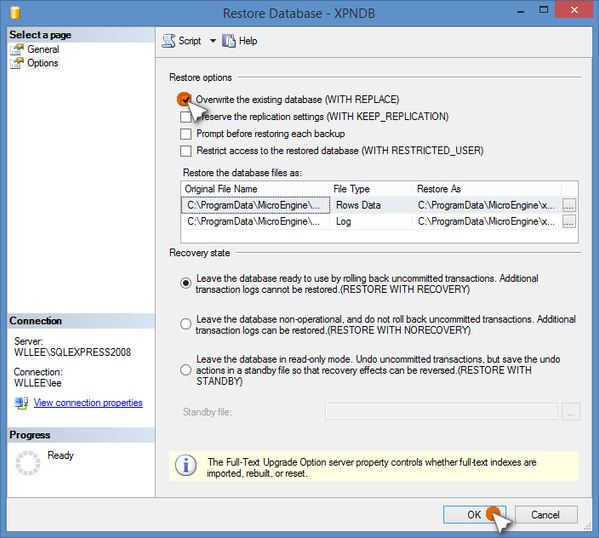
Step 12: Under the Restore options section, check Overwrite the existing database (WITH REPLACE) checkbox and click OK to start the database restore process.
 .
.
Figure 14: Checking Overwrite the Existing Database Option
Step 13: Once the restore process is completed, the following window will be shown. Click OK.
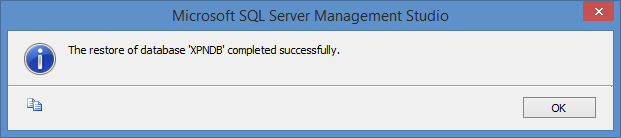
Figure 15: The Database Restore Completed Message Window